
Transferring Steam Guard
If Steam Guard is active on a smartphone or another device, you can transfer it to NebulaAuth without disabling Steam Guard first. In this case, a short 2-day delay is applied (More details: Trade hold)
It is important to understand that this is a transfer, not a copy. After the process is complete, Steam Guard stops working on the previous device.
The transfer is performed through the official Steam mechanism.
✅ Requirements
Before you start, make sure that:
- mobile Steam Guard is active on the account, either in the Steam mobile app or another application
- a phone number is linked to the account
- you have access to the phone to receive SMS
- you know the login and password of the account
Warning
Important
If a phone number is not linked to the account, the transfer is impossible. First link the number through the Steam mobile application or on the Steam website.
🧭 Transfer process
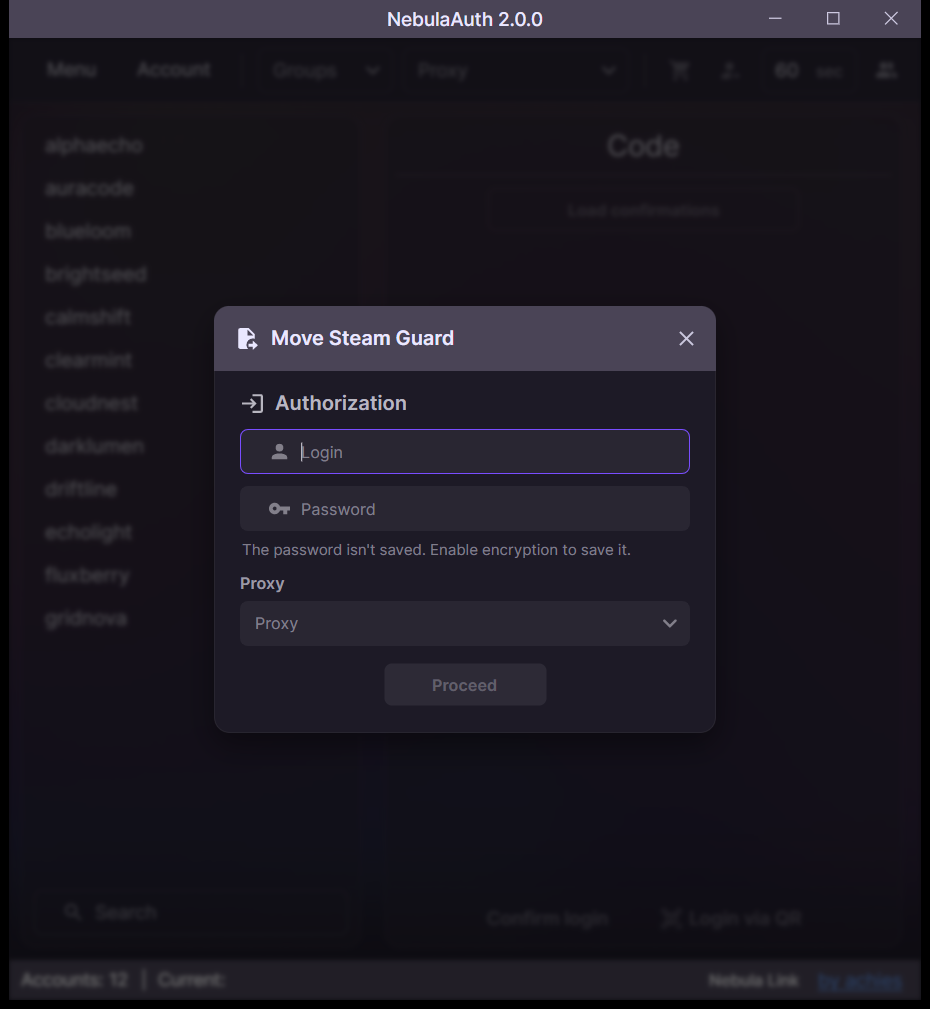
Step 1: Launch the transfer wizard
- In the top menu, click Account → Move Steam Guard
- The transfer wizard opens
Step 2: Log into the account
Enter the login details:
- Login — the name of the Steam account
- Password — the password for the account
- Proxy (optional) — the selected proxy will be used during the transfer process
Click Proceed.
Step 3: Steam Guard code from the phone
Steam will request the current Guard code:
- Open Steam Guard on your phone
- Find the 5-digit confirmation code; it updates every 30 seconds
- Enter the code in NebulaAuth
- Click Proceed
You can also approve the login on the mobile device.
In this case, click Proceed without entering the code.
Step 4: SMS code
An SMS with a confirmation code will be sent to the linked phone number.
- Enter the SMS code
- Click Proceed
You have several attempts. If the code does not match, the application will ask you to enter a new one.
Step 5: Done
The transfer is complete. The screen will display:
- R-code (Revocation Code) Write it down and store it in a safe place (preferably on paper)
- SteamID — the account identifier
The maFile has been created and added to the account list. You can now generate Guard codes and confirm actions directly from your computer.
🔄 What happens to Guard on the phone?
After the transfer:
- Guard on the phone stops working
- old codes will no longer work
- the new Guard works only in NebulaAuth, or in another application if you copy the new maFile
✅ Transfer completed, what's next?
After the transfer, the account appears in the list on the left.
The following sections cover the main application features:
- Interface overview — the main interface elements and their purpose
- First steps — a quick start for generating codes and confirming actions
❓ Frequently asked questions
Can I transfer Steam Guard without a phone number?
No.
The phone number is a mandatory requirement for transfer through the official Steam mechanism.
If I had a 15-day trade delay, will it become 2 days after the transfer?
No.
Trade holds run in parallel and do not stack.
If the account already has a hold, for example 15 days, the transfer will not increase it, but it also will not shorten the total period.
➡️ As a result, the longest active hold applies
More details: Trade hold
Can I use Guard on the phone and in NebulaAuth at the same time?
No.
Transfer is not copying, but recreating the maFile.
After the process is complete:
- Guard on the phone stops working
- codes from the old device become invalid