
Auto-confirmations
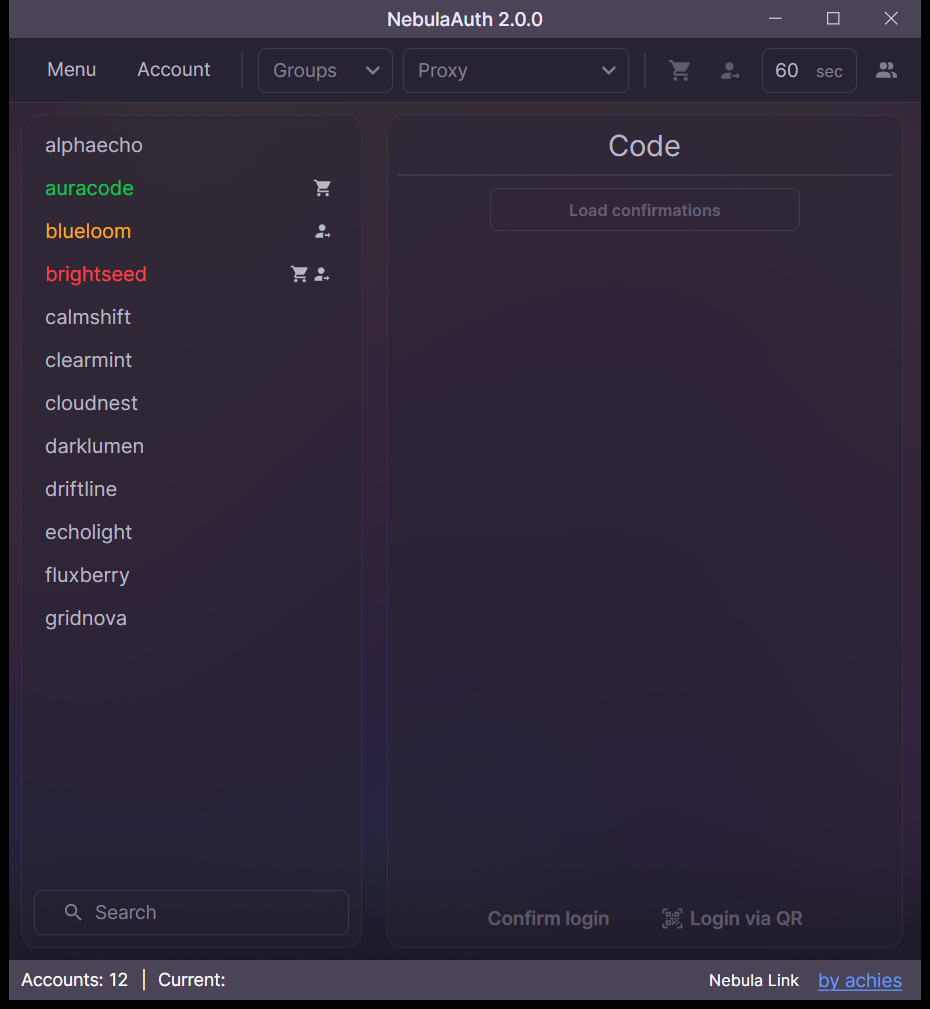
Auto-confirmations let NebulaAuth confirm Steam actions automatically, without opening each account manually.
This is useful when you work with several accounts and want to process sales or trades faster.
What can be confirmed
For each account, you can enable separately:
- purchases and sales on the Market
- trades
These modes are independent. For example, you can enable only Market confirmations, only trade confirmations, or both at the same time.
Auto-confirmations cannot be enabled for accounts connected to Nebula Link.
Warning
Currently, NebulaAuth does not accept trades automatically.
The application can only confirm trades that have already been created or accepted.
Where auto-confirmations are enabled
Auto-confirmations can be enabled:
- for one selected account
- for the selected group of accounts
- for all accounts at once
This lets you quickly configure auto-confirmations for a single account or a large list of accounts.
Settings are saved after restart, so you do not need to enable auto-confirmations again.
How it works
After this feature is enabled, NebulaAuth periodically checks accounts for actions that require confirmation.
If a confirmation is found, the application confirms it automatically according to the selected settings.
The check interval is set at the top of the window next to the auto-confirmation switches.
Tip
Avoid setting a very short interval for a large number of accounts.
If you have many accounts, increase the check interval or use different proxies to reduce the number of requests to Steam from a single IP address.
Errors and statuses
If errors occur during checks, NebulaAuth shows the account state in the interface by changing its color.
The behavior is as follows:
- first, the account becomes yellow, which means there is a temporary problem
- if the error persists and the account cannot recover, it becomes red
Usually problems are related to:
- unstable proxy
- outdated session
- maintenance on Steam's side, often around Tuesday-Wednesday
If the account stays in an error state for a long time, you can:
- log into the account again
- restart the timer for this account
This resets the state and starts another check.
After restarting the application
Confirmation settings are saved when NebulaAuth restarts.
All settings are preserved, and the application continues working in the same mode as before it was closed.
Recommendations
- use stable proxies
- do not set too small a check interval
- increase the interval for a large number of accounts
- if errors appear, first check the proxy and the account session