
Appearance
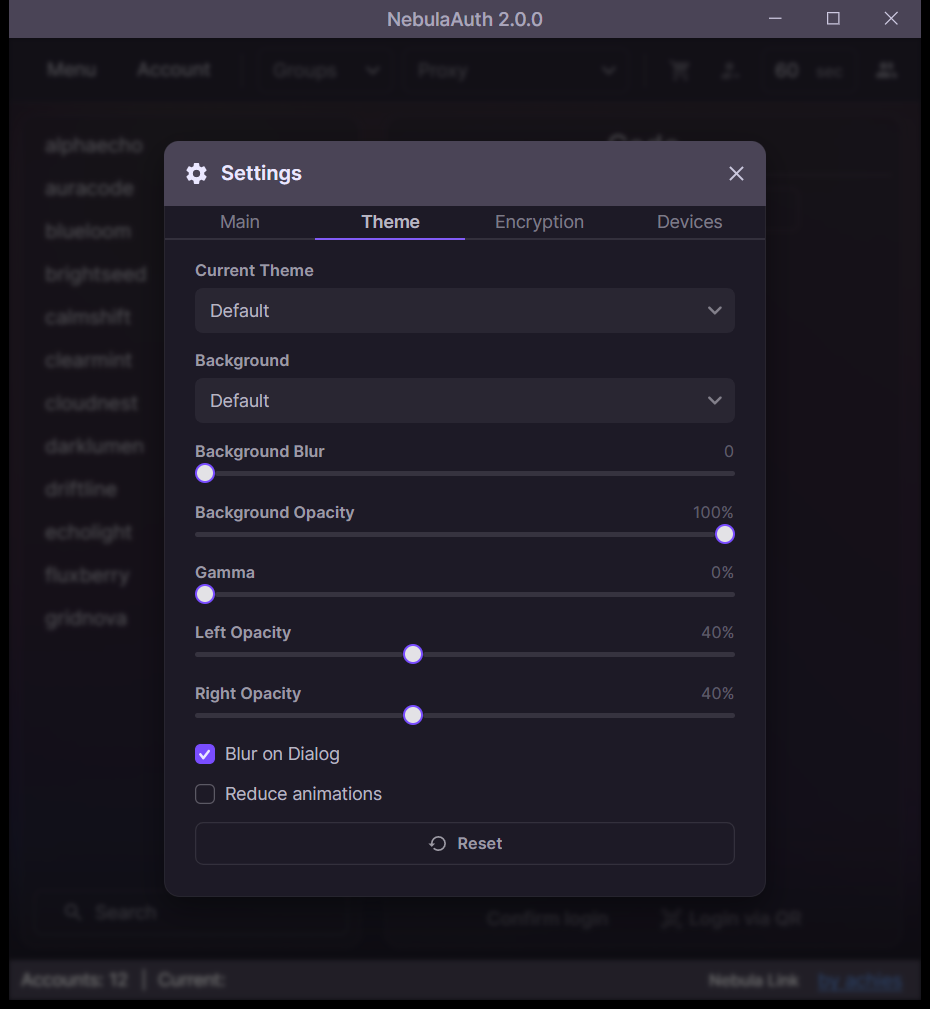
In NebulaAuth, you can customize the interface appearance: theme, background, and transparency.
Themes
Several design themes are available:
- Default
- Black
- Light
- Luxury
- Shadcn
You can choose any theme in the settings.
Background
You can choose one of the modes:
- standard background
- custom background
- solid color, without an image
For a custom background:
- the file must be named Background.png
- the file must be located in the data folder
- custom background mode must be selected in the settings
Transparency and effects
You can configure the transparency and visual effects of the interface:
- background blur
- transparency
- brightness, gamma
- transparency of individual panels
Additional options are also available:
- blur when opening dialog windows, which blurs the background behind modal windows
- reduce animations, which turns off most interface animations
Reset settings
The reset button restores visual settings to their default values.
The theme and background mode do not change.
❓ Frequently asked questions
Do effects affect performance?
High blur values and animations can reduce performance, especially on weak systems.
To improve performance:
- disable background blur
- turn on Reduce animations