
Linking an account
If mobile Steam Guard has never been enabled on your Steam account, or if you have disabled it, you can link a new Steam Guard directly through NebulaAuth.
✅ Requirements
Before you start, make sure that:
- the account does not have an active mobile Steam Guard
- you have access to the email linked to the account
- you know the login and password of the Steam account
Tip
Trade hold
After you link a new Steam Guard, a 7-day trade hold starts on the account. For new accounts, the delay can be up to 15 days.
More details: Trade hold
🧭 Linking process
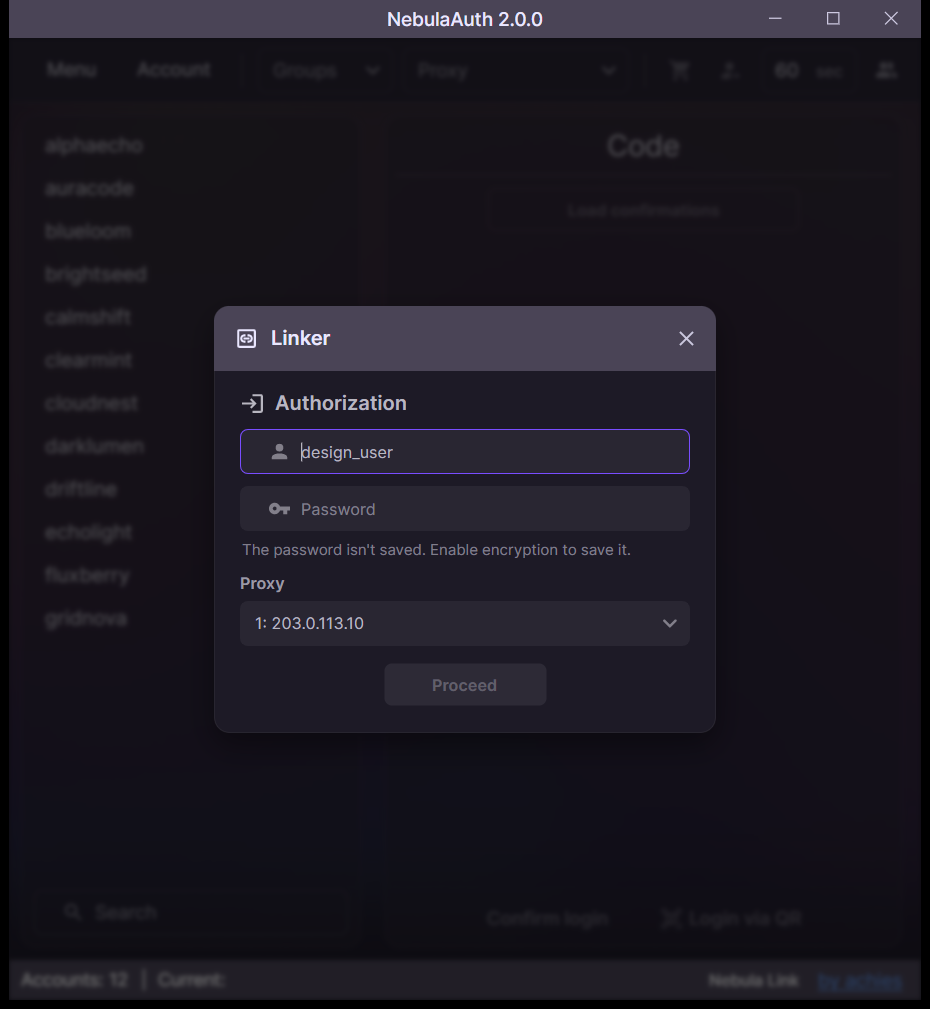
Step 1: Launch the linking wizard
- In the top menu, click Account → Link
- The linking wizard opens
Step 2: Log into the account
Enter the login details:
- Login — the name of the Steam account
- Password — the password for the account
- Proxy (optional) — the selected proxy will be used during the linking process
Click Proceed.
Step 3: Code from email, if email Guard is enabled
If email Steam Guard is enabled on the account, Steam will send a confirmation code to your email.
- Enter the code
- Click Proceed
If email Guard is not enabled, this step is skipped automatically.
Step 4: Phone number, optional
Steam may ask you to enter a phone number. Currently, this is not required.
Possible options:
- Enter a phone number → SMS confirmation will be required
- Leave the field empty → the confirmation code will be sent by email
Step 5: Confirmation
The next actions depend on the previous step:
- if you entered a phone number, enter the SMS code
- if the number was skipped, enter the code from email
If the phone number was already linked to the account before, the confirmation code will arrive by SMS, even if you skipped the phone number step.
Step 6: Done
Linking is complete. The screen will display:
- R-code (Revocation Code) Write it down and store it in a safe place (preferably on paper)
- File name — the name used to save the maFile in the
maFilesfolder
Tip
NebulaAuth automatically creates a backup of the maFile in the maFiles_backup folder. This provides extra protection if the main file is lost or the linking process fails.
The maFile is automatically added to the account list. You can now generate Guard codes and, after the temporary trade hold ends, confirm item actions.
⚠️ What should I do if an error occurs?
Sometimes the linking process may fail with an error. The most common messages are:
BadConfirmationCodeInvalidState- "The code did not match"
This is a known issue on Steam's side, not an error in NebulaAuth.
🔧 Solution
Follow the steps exactly
If this error appears, follow the steps strictly in order:
- Start the linking process again
- Enter the login and password
- When asked for a phone number, enter any real phone number
- Follow the link from the email
- Click Proceed
Then two scenarios are possible:
Scenario A: An error appears If any error appears, proceed to step 6
Scenario B: SMS code request If the system requests an SMS:
- ❗ Do not enter the SMS code
- Close the linking window
- Wait 20 minutes for Steam to reset the state
- After that, the problem should be gone
- Repeat the normal linking process
Warning
After 3-5 failed attempts, Steam may block linking for a period from 1 day to a week.
If an error appears, do not keep retrying blindly. Use the instructions above right away.
Why does this work?
This is a known quirk in Steam's logic. When you go through the process with a phone number, Steam clears the internal "lock", and the next linking attempt can proceed normally.
✅ Linking completed, what's next?
After linking, the account appears in the list on the left.
The following sections cover the main application features:
- Interface overview — the main interface elements and their purpose
- First steps — a quick start for generating codes and confirming actions
❓ Frequently asked questions
Can I link an account if Steam Guard is already enabled on another device?
No.
If mobile Steam Guard is already active, use Steam Guard transfer.
If you want to link Guard again:
- Disable the current Steam Guard
- Wait until the cooldown ends, 15 days
- After that, link Steam Guard through NebulaAuth
Why is an SMS code requested if I did not enter a phone number?
Possible reasons:
- the phone number is already linked to the account
- the number was entered earlier, and Steam may remember it for 20-30 minutes
In that case:
- wait some time
- repeat the linking process
I get a LimitExceeded error or other errors after several attempts
Steam limits the number of linking attempts.
After several failed attempts, Steam may apply a temporary block:
- from 24 hours to several days
We recommend that you:
- stop trying
- wait
- then repeat the process, strictly following the instructions above
I followed the bug fix instructions, but the error still appears
Some accounts may be more sensitive to this Steam behavior.
In this case, we recommend that you:
- Go to the official Steam website through a browser
- Link the phone number manually
- After that, return to NebulaAuth and finish linking via SMS