
Importing maFiles
Importing is the easiest way to add accounts to NebulaAuth. If you already have maFiles, for example from Steam Desktop Authenticator or another application, you can quickly move them into NebulaAuth.
Import methods
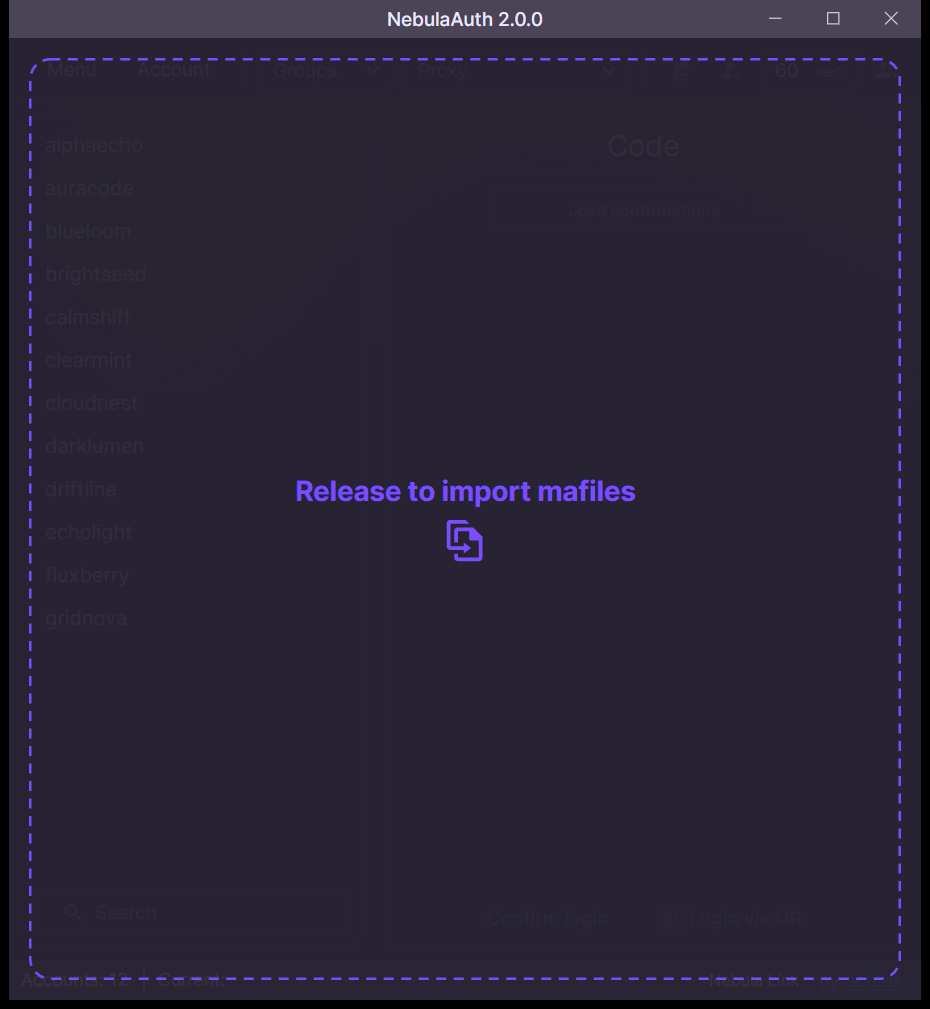
1️⃣ Drag & Drop
The fastest option:
- Open the folder with maFiles
- Select the files you need, or select all of them
- Drag them directly into the NebulaAuth window
The application will automatically recognize the format and add the accounts.
2️⃣ Paste from the clipboard (Ctrl + V)
A quick way for those who prefer the keyboard:
- Select the files in Explorer
- Press Ctrl + C
- Go to the NebulaAuth window
- Press Ctrl + V
All copied maFiles will be added automatically.
3️⃣ Through the menu
The classic option:
- Click Menu → Import
- Select one or several
.maFilefiles - Click Open
Import window
Before adding the files, NebulaAuth shows the import window. maFiles that already exist are skipped unless Overwrite conflicting mafiles is checked.
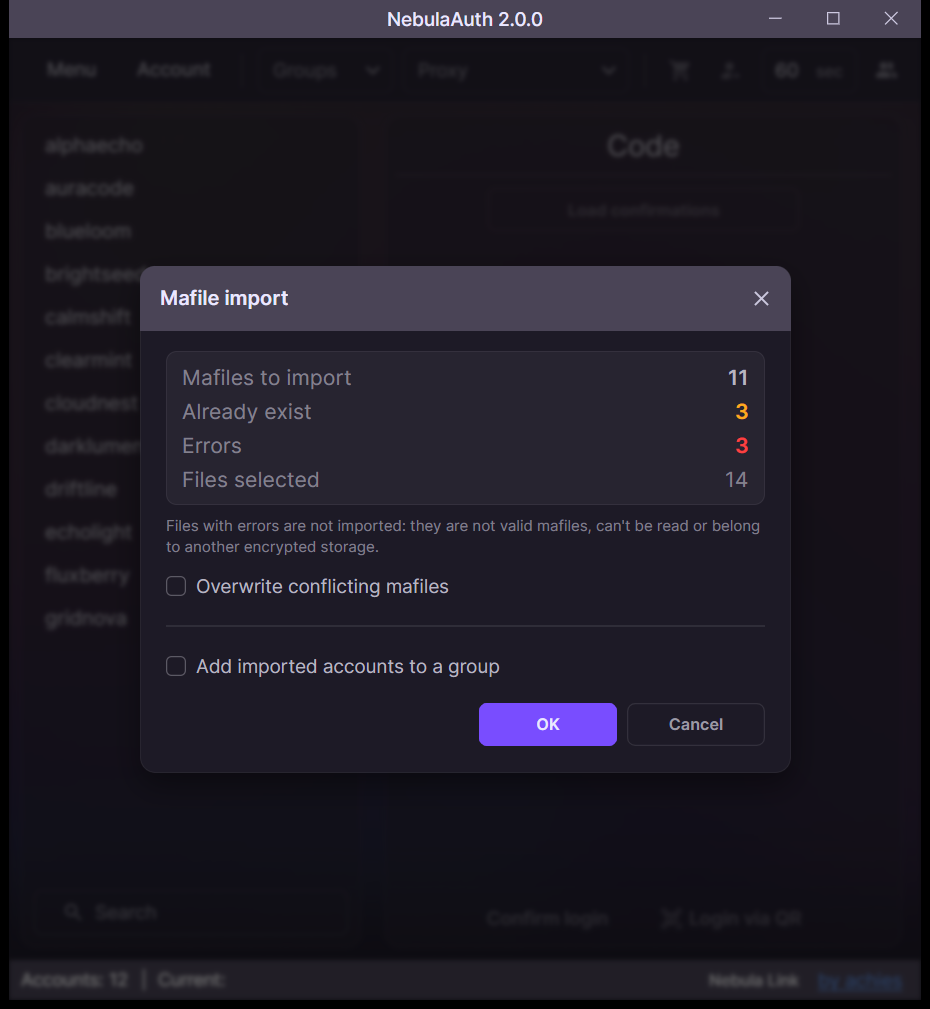
The window always appears when some maFiles already exist. Otherwise it appears only when Ask confirmation when importing mafiles is on in the settings.
Additional information
🔒 Encrypted maFile (migration from SDA)
NebulaAuth supports importing encrypted maFiles created in Steam Desktop Authenticator (SDA).
If your files are encrypted, NebulaAuth will automatically ask for the encryption password you used in SDA during import.
How the import works
- Start importing the maFile into NebulaAuth
- When prompted, enter the encryption password from SDA
- Wait for the import to complete
After that, the accounts are added and ready to use.
Skipped files
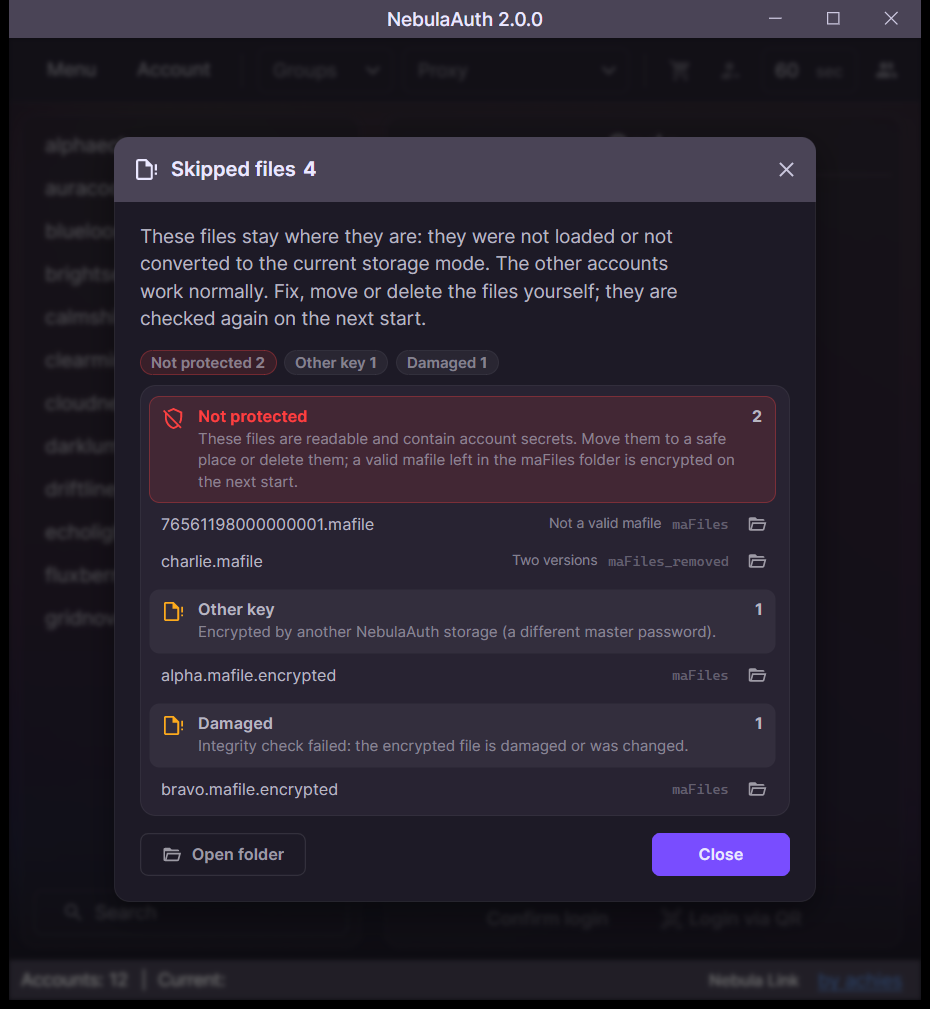
maFiles that NebulaAuth could not read at startup stay in their folder and do not appear in the account list. Their number is shown in the bottom panel: click it to see each file and the reason.
Import completed, what's next?
After import, the accounts appear in the list on the left.
The following sections cover the main application features:
- Interface overview — the main interface elements and their purpose
- First steps — a quick start for generating codes and confirming actions
❓ Frequently asked questions
Why is the maFile not being imported?
Check the following:
- the file extension is
.maFile - the file opens in a text editor and contains valid JSON
Also make sure the file contains the required fields:
shared_secretidentity_secretdevice_idaccount_name
If these conditions are not met, the file will not be recognized as a valid maFile.
Are maFiles compatible with Steam Desktop Authenticator (SDA)?
Yes, maFiles are fully compatible.
Files from SDA can be imported into NebulaAuth and also used in other compatible applications.